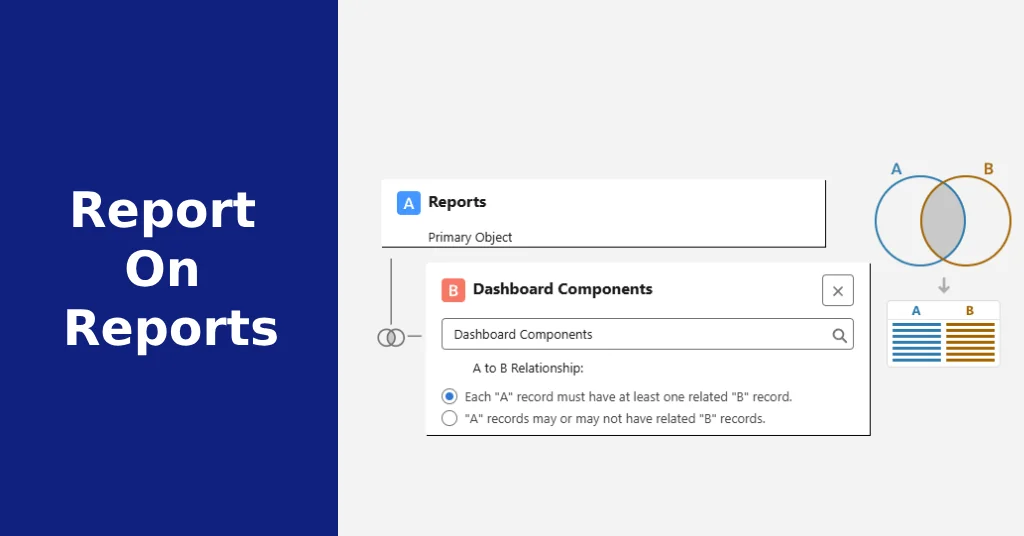
Salesforce teams often accumulate hundreds or thousands of reports, but there is no single screen that answers every cleanup question. A reliable report audit usually combines folder review, metadata, subscriptions, ownership, dashboard dependencies, runtime checks, and business context.
The old phrase “report on reports” can be useful shorthand, but it can also create a false expectation. Salesforce admins can inspect report and dashboard information through several methods. No one method proves ownership, usage, dependencies, folder access, subscriptions, and business value by itself.
Define what you are trying to learn
Before choosing a tool, define the question. Different methods answer different questions.
- Metadata visibility: What is the report definition, report type, filters, folder, and dashboard relationship?
- Runtime visibility: What happens when the report is run, exported, filtered, or subscribed to?
- Usage evidence: What signs suggest a report is or is not being used?
- Ownership: Who created it, owns it, maintains it, or depends on it?
- Folder access: Who can see it?
- Subscription data: Who receives scheduled report or dashboard email?
- Dashboard dependency: Which dashboards rely on which source reports?
Do not promise that a standard “report on reports” answers all of these at once.
Inventory report and dashboard folders
Start in the Reports and Dashboards tabs. Folder review is still useful because it shows how the business organizes reporting, who has access, and where old copies collect.
- List report folders and dashboard folders.
- Note folder owners, sharing, business unit, and naming patterns.
- Identify personal folders that may contain important one-off reports.
- Separate production dashboards from scratch work and old variants.
Folder access matters because a report can be useful to one team and invisible to another.
Identify report owners
Created By and Last Modified By fields can help, but they do not always identify the real business owner. The person who built the report may not be the person who depends on it now.
For each cleanup candidate, record:
- Report or dashboard name.
- Folder.
- Created By and Last Modified By.
- Business owner or team.
- Decision the report supports.
- Whether it appears in a dashboard, subscription, meeting, export, or process handoff.
Review subscriptions and scheduled delivery
Subscriptions are useful evidence because they show scheduled delivery, but they are not perfect. A report may be subscribed to and ignored, or manually run during a monthly process without any subscription.
- Review report subscriptions and dashboard subscriptions where your permissions allow it.
- Check scheduled delivery cadence and recipients.
- Confirm whether the recipients still need the report.
- Look for reports emailed to inactive users or old distribution patterns.
Subscription review is especially important before archiving reports that executives, finance, operations, or sales leaders receive on a schedule.
Trace dashboards to source reports
A report can look unused in isolation while still powering a dashboard. Before archiving a report, check whether it is used as a dashboard source report or referenced by a dashboard component.
Dashboard dependency review should include:
- Dashboard name and folder.
- Component title.
- Source report.
- Dashboard owner.
- Audience and business cadence.
Related project example: pipeline target rollups.
Review filters and report types
Report metadata can show the report type, filters, columns, groupings, and other definition details. That is useful for finding stale variants, broken assumptions, and reports based on custom report types nobody maintains.
- Check whether filters still match the current sales or service process.
- Review custom report types with no clear owner.
- Look for old picklist values, retired stages, inactive users, or legacy record types in filters.
- Identify duplicate reports that differ only by date range, owner, or one filter.
For dashboard-quality cleanup, see how to create Salesforce dashboards that drive action.
Evaluate usage evidence carefully
Last-run information is a clue, not a verdict. A report that has not been run recently may still support quarterly close, annual planning, audits, board reporting, compensation, renewals, or exception handling.
Usage evidence can include:
- Last run or last viewed signals where available.
- Subscriptions and scheduled delivery.
- Dashboard component dependencies.
- Exports or API usage if tracked in the org.
- Event Monitoring or audit data where licensed and configured.
- Business-owner confirmation.
Do not claim that last-run date alone proves a report is unnecessary.
Know what each method can and cannot tell you
| Method | Useful for | Limitation |
|---|---|---|
| Reports and Dashboards tabs | Folder review, names, owners, sharing context, visual cleanup candidates. | Manual review does not scale well in large orgs. |
| Standard report metadata and report builder | Report type, columns, filters, groupings, and basic definition review. | Definition does not prove actual business use. |
| Custom report types or admin reports | Inventory views where the org exposes report metadata through reportable objects. | Availability and fields vary by org and permissions. |
| Metadata API | Report and dashboard definitions in source or metadata export. | Useful for structure, not runtime usage by itself. |
| Analytics REST API | Programmatic access to report resources and report execution context. | Requires API access, permissions, and careful interpretation. |
| Tooling API and SOQL | Some metadata inspection depending on object support and permissions. | SOQL cannot answer every report-definition or dashboard-usage question cleanly. |
| Setup Audit Trail | Administrative changes that may affect reports, dashboards, folders, or setup. | Audit events are not the same as end-user report usage. |
| Event Monitoring | Deeper usage evidence in orgs that license and retain those events. | Not available in every org and still needs business context. |
Separate unused from business-critical
Use a review queue instead of immediate deletion. Group reports into retain, consolidate, archive, rewrite, or investigate.
- Retain: trusted, owned, and tied to a current process.
- Consolidate: duplicate reports where one version can become the source of truth.
- Archive: likely stale, but safe to move before deletion.
- Rewrite: important purpose, weak filters or broken assumptions.
- Investigate: unclear owner, subscription, dashboard dependency, or audit purpose.
Identify duplicates and stale variants
Duplicates usually appear when each team copies a report and changes one filter. That can be fine, but it often creates conflicting numbers. Look for nearly identical names, same report type, same core filters, and folders where every team has its own version.
The fix is not always deletion. Sometimes the fix is a trusted dashboard, clearer folder structure, standard filters, and a note explaining which report is the source of truth.
Document report purpose and ownership
Every report worth keeping should have a short purpose. Who uses it? What decision does it support? What fields must stay trustworthy? Who owns follow-up when the number looks wrong?
A dashboard only drives action when the business agrees on the fields, filters, definitions, owners, and cadence behind it. My pipeline reporting case study documents one example of tracing that logic.
Create an archive or retirement process
For reports that look stale, create a staged process:
- Move the report to an archive folder or mark it as pending retirement.
- Notify the folder owner or business group.
- Wait through the relevant business cycle if the report may be seasonal.
- Confirm no dashboard, subscription, export, or business review depends on it.
- Delete only after approval and documentation.
Report and dashboard audit checklist
| Area | Checklist item |
|---|---|
| Inventory | Report name, dashboard name, folder, report type, owner, created date, last modified date, and business area. |
| Ownership | Created By, Last Modified By, current business owner, and team that depends on the output. |
| Definition | Filters, columns, groupings, source objects, custom report type, and assumptions. |
| Dashboard dependency | Dashboards and components that use the report. |
| Subscriptions | Scheduled reports, dashboard subscriptions, recipients, cadence, and inactive recipients. |
| Usage evidence | Last-run clues, Event Monitoring where available, exports, manual process use, and business-owner confirmation. |
| Access | Folder sharing, viewer groups, manager visibility, and whether the right teams can find the report. |
| Decision | Retain, consolidate, archive, rewrite, investigate, or retire. |